How to Configure Gemini CLI settings.json in AI Skill Notebook
2/8/2026, 9:33:22 PM
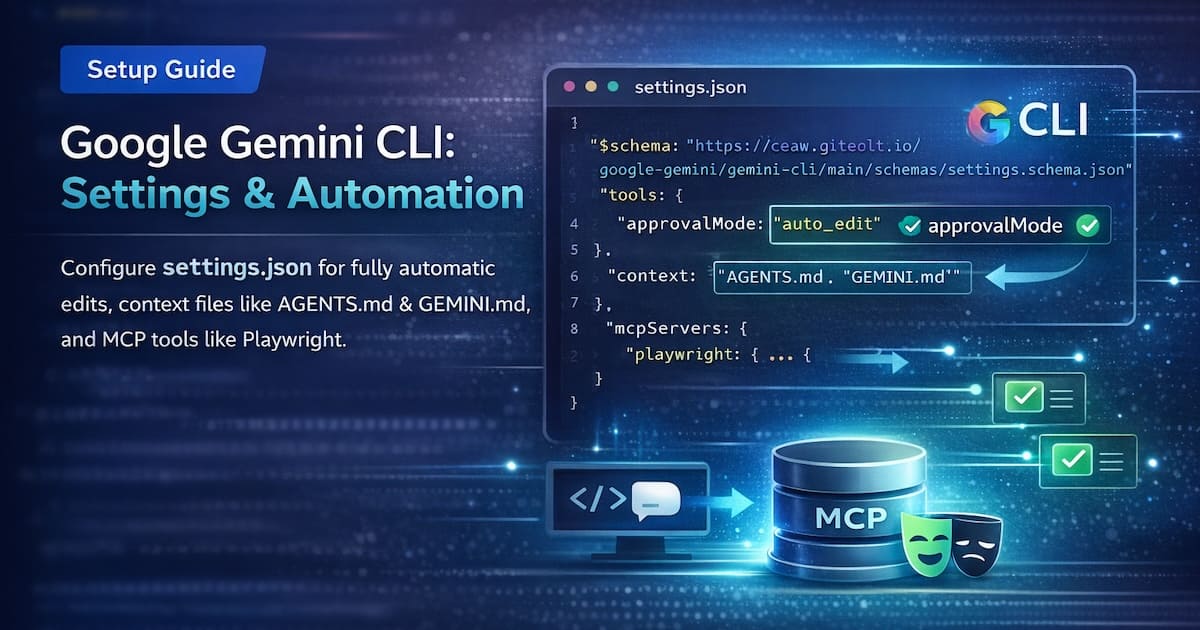
Configure Gemini CLI in AI Skill Notebook for a smoother, faster AI workflow—enable auto-approval, AGENTS.md, GEMINI.md.
When you use Google Gemini CLI, the AI will often ask for your approval before it:
sends a network request (for example, calling an online API), or
edits files in your workspace.
If you want Gemini CLI to run fully automatically, or you want to authorize it to call other tools on your system, you can do that by changing Gemini CLI’s configuration file.
Good to know (for non‑programmers):
A workspace is simply the folder where your project files live.
A configuration file is a small text file that stores “settings” — like preferences.
The settings.json file
For Gemini CLI users, you can configure rules in:
<your-workspace>/.gemini/settings.json
In AI Skill Notebook, you can edit this file via:
Top-right Settings (icon) → Gemini CLI Configuration → Open
Note: Google Gemini and Claude code use the same settings.json file, so the actual settings.json file may contain configurations for both Google Gemini and Claude code.
Example settings.json
{
  "$schema": "<https://raw.githubusercontent.com/google-gemini/gemini-cli/main/schemas/settings.schema.json>",
  "tools": {
    "approvalMode": "auto_edit"
  },
  "context": {
    "fileName": ["AGENTS.md", "GEMINI.md", "override.md"]
  }
}
Tip: Keep the
$schemaline as-is. It helps editors validate your JSON and show hints.
tools.approvalMode (how often Gemini asks you)
This setting controls whether Gemini CLI should ask for confirmation before doing actions.
AI Skill Notebook sets the default to auto_edit. You can change it to:
default: Always ask for approval (safest)plan: Read-only mode (Gemini can analyze, but cannot edit files)auto_edit: Don’t ask; allow automatic edits (most automated)
Plain-English explanation:
Choose
defaultif you want maximum control.Choose
planif you only want suggestions, not changes.Choose
auto_editif you want hands-off automation.
context.fileName (which “project notes” Gemini reads by default)
Gemini CLI usually looks for GEMINI.md as the main “project instruction” file.
However, ChatGPT-style agents often use AGENTS.md as the default instruction file.
In AI Skill Notebook, the default configuration includes both:
AGENTS.mdGEMINI.mdCLAUDE.mdplus
override.md
This ensures Gemini sees the key project guidance regardless of which convention is used.
Can I add my own files here?
Yes. You can add any filename you want Gemini to treat as “default context” — as long as that file is located in the workspace root (top level).
Example: If you add
PROJECT_BRIEF.md, make sure it is here:
<your-workspace>/PROJECT_BRIEF.md(not inside a subfolder)
Using third‑party MCP servers (Model Context Protocol)
Third-party tools that support MCP (Model Context Protocol) can be controlled through natural language.
Example: Playwright MCP
Developers often use Playwright to control a browser via code.
With Playwright MCP, Gemini can control the browser by understanding your intent in natural language.
To use Playwright MCP in Gemini CLI, add a mcpServers section to settings.json (add the playwright block under mcpServers):
{
  "tools": {
    "approvalMode": "auto_edit"
  },
  "context": {
    "fileName": ["AGENTS.md", "GEMINI.md", "override.md"]
  },
  "mcpServers": {
    "playwright": {
      "command": "npx",
      "args": ["@playwright/mcp"],
      "timeout": 600000
    }
  }
}
Notes (important for non‑programmers)
command/args: This tells Gemini CLI how to start the MCP server.cwd: The working folder where that MCP server lives. Replace/home/YOUR_USERNAME/playwright-mcpwith your real path.timeout: How long Gemini will wait (in milliseconds).600000ms = 10 minutes.
More settings
For a complete list of configuration options, see:
Google Gemini CLI Settings: https://geminicli.com/docs/cli/settings/